Roku IPTV Setup Guide
Watch HoxyTV on a Roku TV or streaming player with IBO Player Pro from the Roku Channel Store, or cast to the Roku from your phone.
Last updated
In short: HoxyTV on Roku
Add IBO Player Pro from the Roku Channel Store and open it to read its MAC address and device key. From a phone or computer, log in with both at iboplayer.com/device/login and add your HoxyTV M3U URL, then reopen the app. An iPhone can also AirPlay to the Roku, and an Android phone can mirror to it.
What You'll Need
- A Roku TV or Roku streaming player
- The M3U URL from your HoxyTV welcome email
- A phone or computer to open the player's website
- Internet of at least 15 Mbps for HD, or 25 Mbps for 4K
Players for Roku
| Player | Where to get it | Adding your playlist |
|---|---|---|
| IBO Player Pro | Roku Channel Store | Log in at iboplayer.com/device/login with the MAC address and device key on your screen |
| AirPlay | Included on AirPlay-capable Roku models | Play HoxyTV in an iPhone or iPad app and cast it |
Setup steps
Step 1: Add IBO Player Pro
- Press Home on the Roku remote and go to the Roku Channel Store (shown as Streaming Channels or Apps).
- Search IBO Player Pro and add it. Some stores also carry Hot Player: it works too, with the playlist added on hotplayer.app/upload using the MAC address it shows.
Step 2: Configure IBO Player Pro
- Launch IBO Player Pro on your Roku. It shows two things you need: a MAC address and a device key.
- From a phone or computer, visit iboplayer.com/device/login, enter both and solve the captcha.
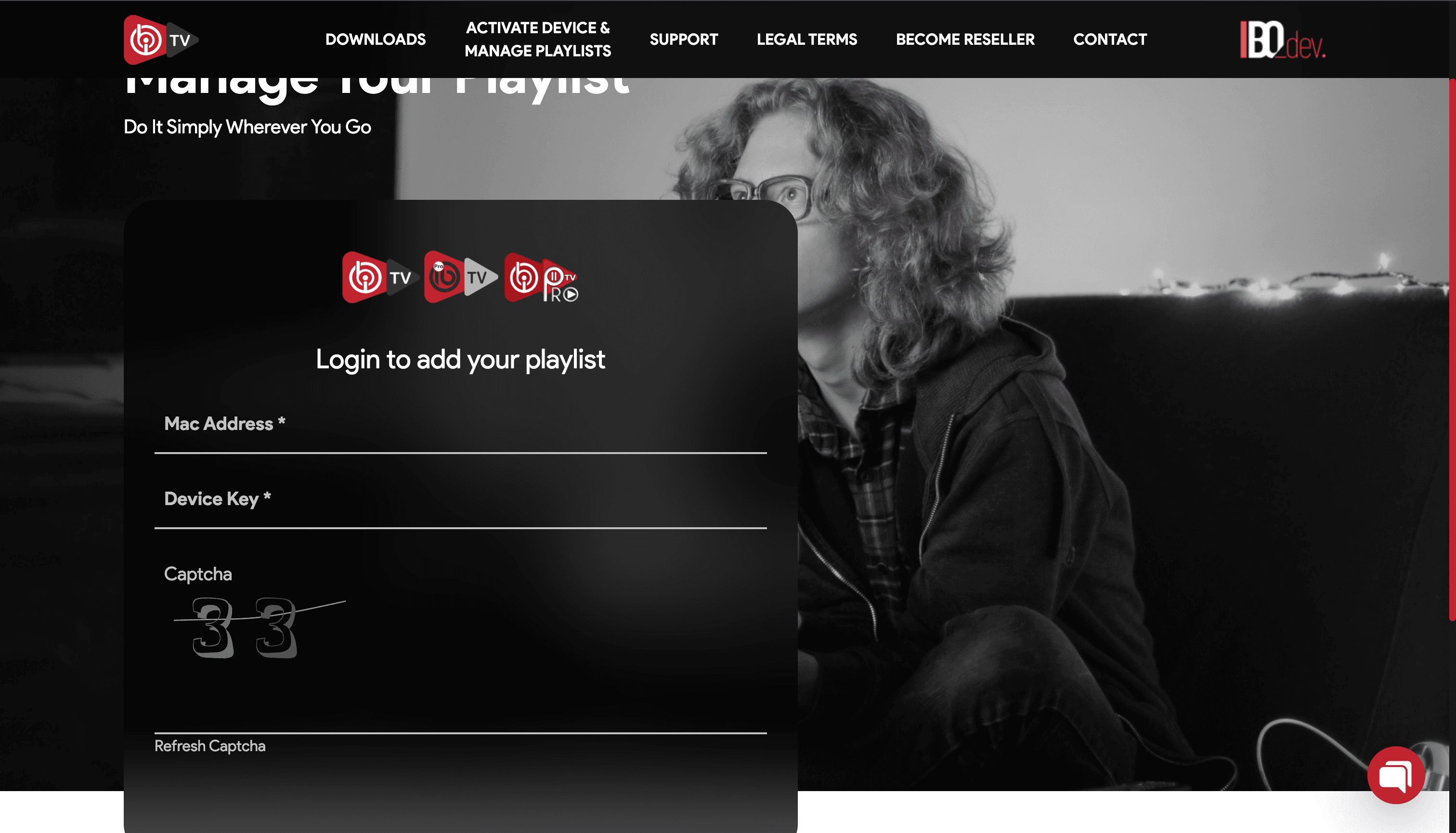
- Click Add playlist, set Playlist name to HoxyTV and put your M3U URL in Playlist URL.
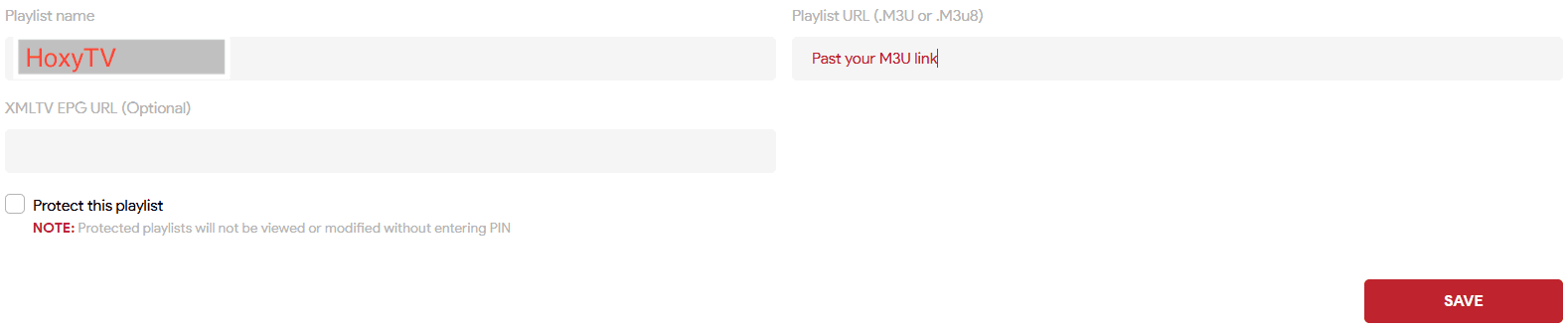
- Click Save, then close and reopen IBO Player Pro on the Roku.
Another option: cast from your phone or PC
- iPhone or iPad: on the Roku, open Settings > Apple AirPlay and HomeKit and switch AirPlay on (where the model has it). Play a channel in an app like UHF (see the iPhone and iPad tutorial), tap AirPlay and choose the Roku.
- Android phone or Windows PC: on the Roku, set Settings > System > Screen mirroring to Prompt or Always allow. Then tap Cast or Smart View on the phone, or press Windows + K on the PC, and pick the Roku.
- Your phone or PC and the Roku need to be on the same Wi-Fi.
You're All Set!
Your Roku now plays HoxyTV. If something is not right, the answers below cover the usual fixes.
Troubleshooting on Roku
Do Downloader codes or APK files work on Roku?
No. Roku cannot run Android apps, so Downloader and APK files are out. Use IBO Player Pro from the Roku Channel Store, or cast from your phone.
I cannot find IBO Player Pro in the Roku Channel Store. Now what?
The Roku store is not the same in every country. Casting from your phone works instead, or message our support team and we will find another way for you to watch.
My playlist shows no channels or fails to load. How do I fix it?
Copy the M3U URL from your welcome email again, all of it, and paste it once more. Make sure you logged in with the MAC address on your screen (and for IBO Player Pro, its device key too), then reopen the app. Still empty? Message our support team.
Don't have HoxyTV yet?
Choose a plan and your login details reach your inbox right after payment: 30,000+ live channels, 100,000+ movies and shows, and setup help day and night.